AI Object Remover
Remove tags, clutter and reflections from product photos
Brush over what shouldn't be there and it's gone. Only the area you paint changes; every other pixel is copied straight from your original.
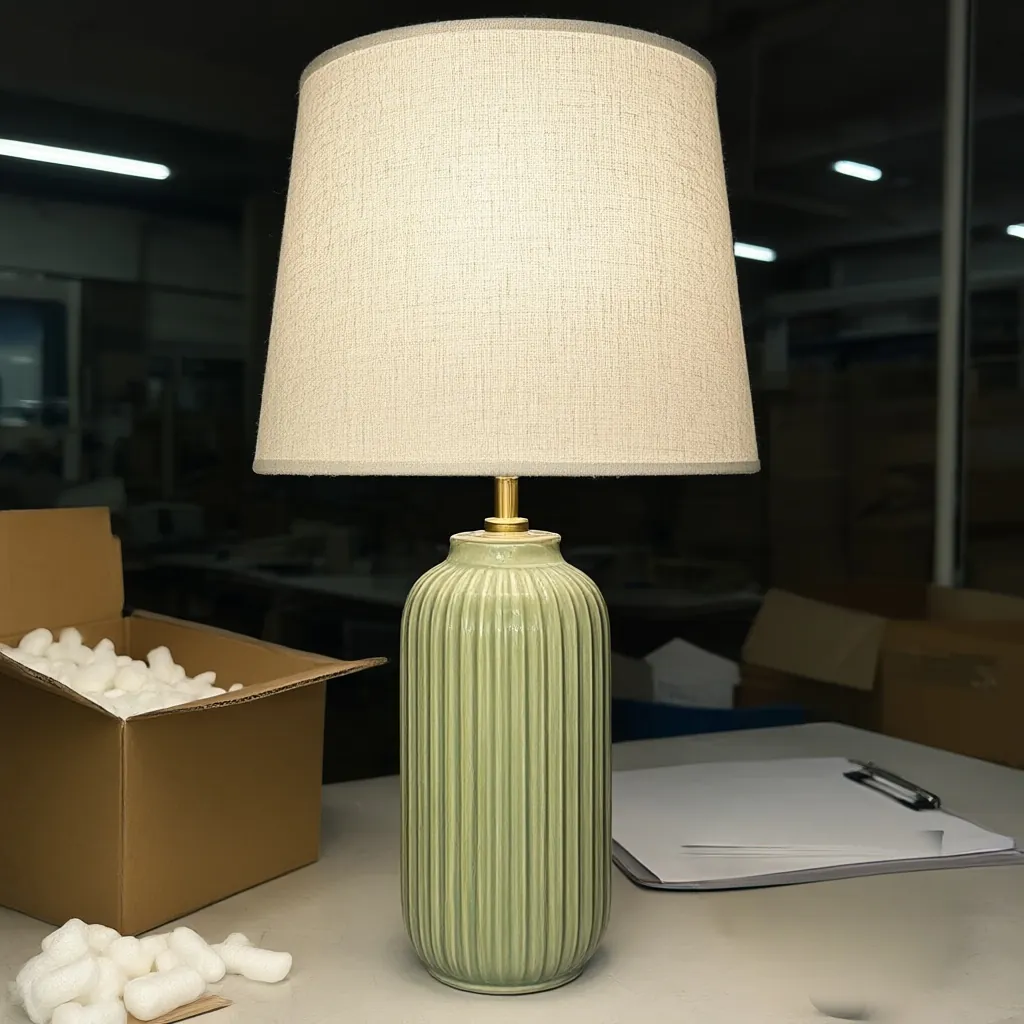
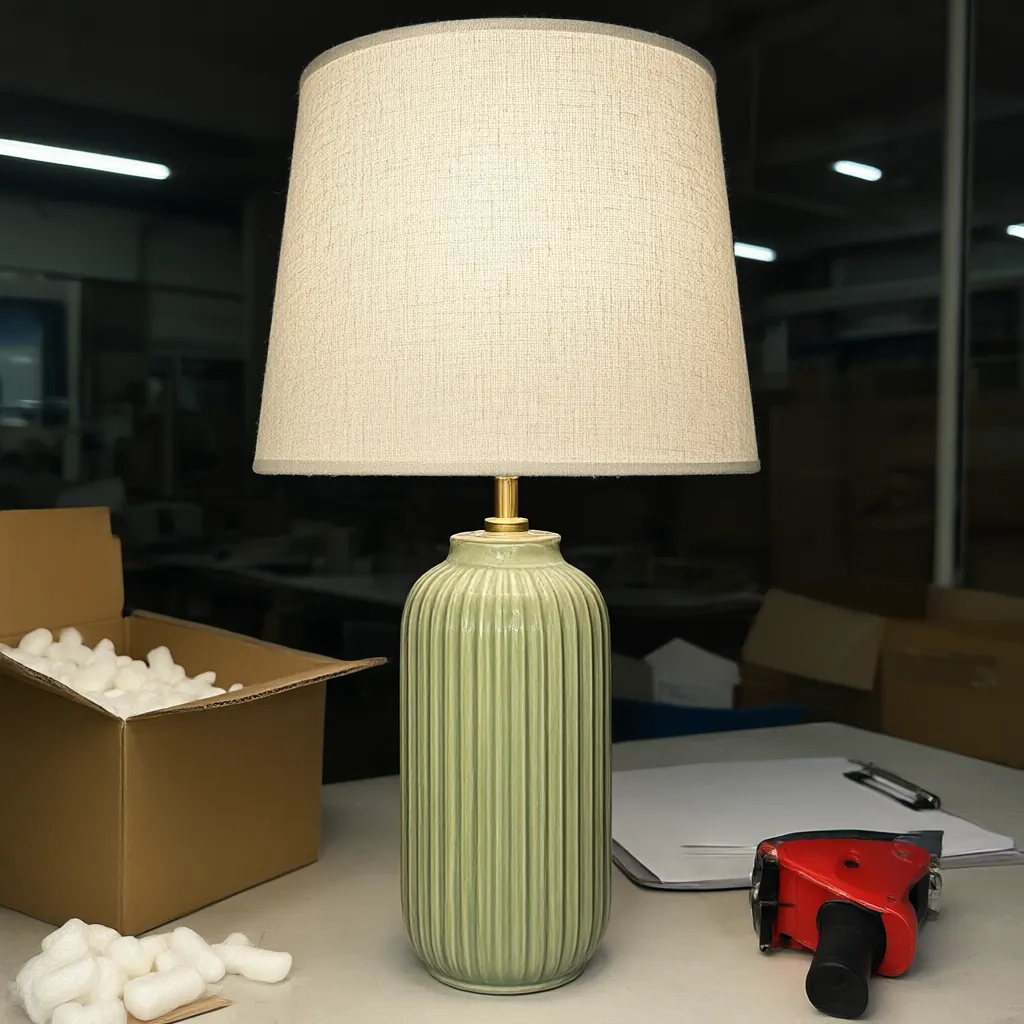 Snapshot
Cleaned
What you get
How the AI Object Remover works
What you upload
One photo: a snapshot, a product shot, or an image you made with our other tools.
How you mark it
Paint over what should go with an adjustable brush.
Optional hint
Say what should go, such as "the price tag".
What changes
Only the painted area. Every other pixel is copied straight from your original.
Credits
1 credit per image.
Speed
About ten seconds once your job starts.
Examples
Made with the AI Object Remover
Studio samples, each made from a plain snapshot with our own tools.
How it works
Four steps, no photoshoot
Upload a photo
JPG, PNG or WebP.
Paint over it
Brush over the tag, clutter or reflection.
Add a hint
Optional: say what should go.
Download
Your photo, with only the painted area cleaned up.
Questions
Will it change the rest of my photo?
No. Only the area you paint changes. Every other pixel is copied straight from your original.
What can it remove?
Tags, clutter and reflections: anything you can paint over that shouldn't be in the shot.
Can I use it on images I made with the other tools?
Yes. Upload any photo, including lifestyle images or silo shots you made here.
How many credits does it use?
1 credit per image.
More answers on the pricing page. Related guide: How to photograph products without a studio.
Get started
Try every tool with 200 free credits.
No card needed. Want us to do a whole catalog for you? Email hello@ketchupnomayo.com.
Already have an account? Log in