Silo Shot Generator
Silo shots on pure white, from any product photo
Upload a snapshot from the warehouse floor and get a clean cut-out on pure #FFFFFF white, or any backdrop color you choose, with a soft shadow that falls under the product in real perspective.
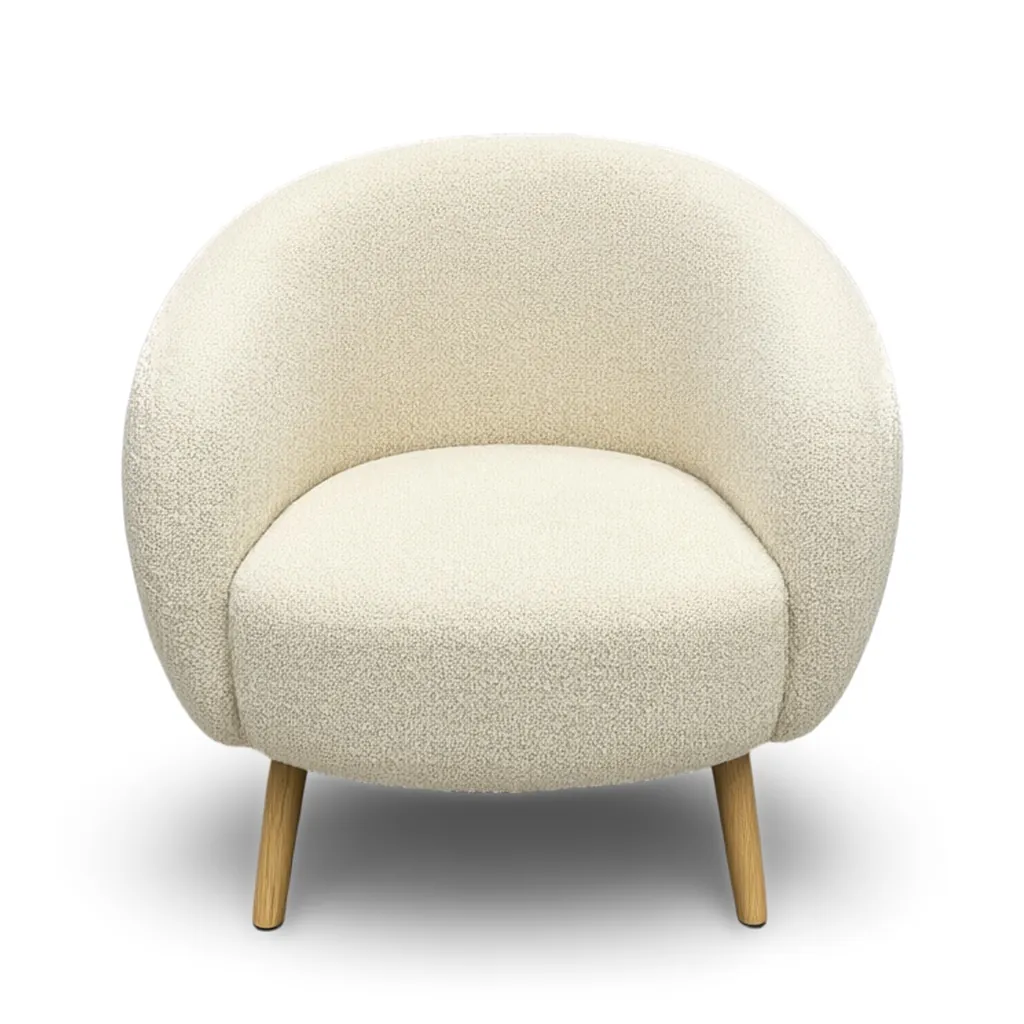
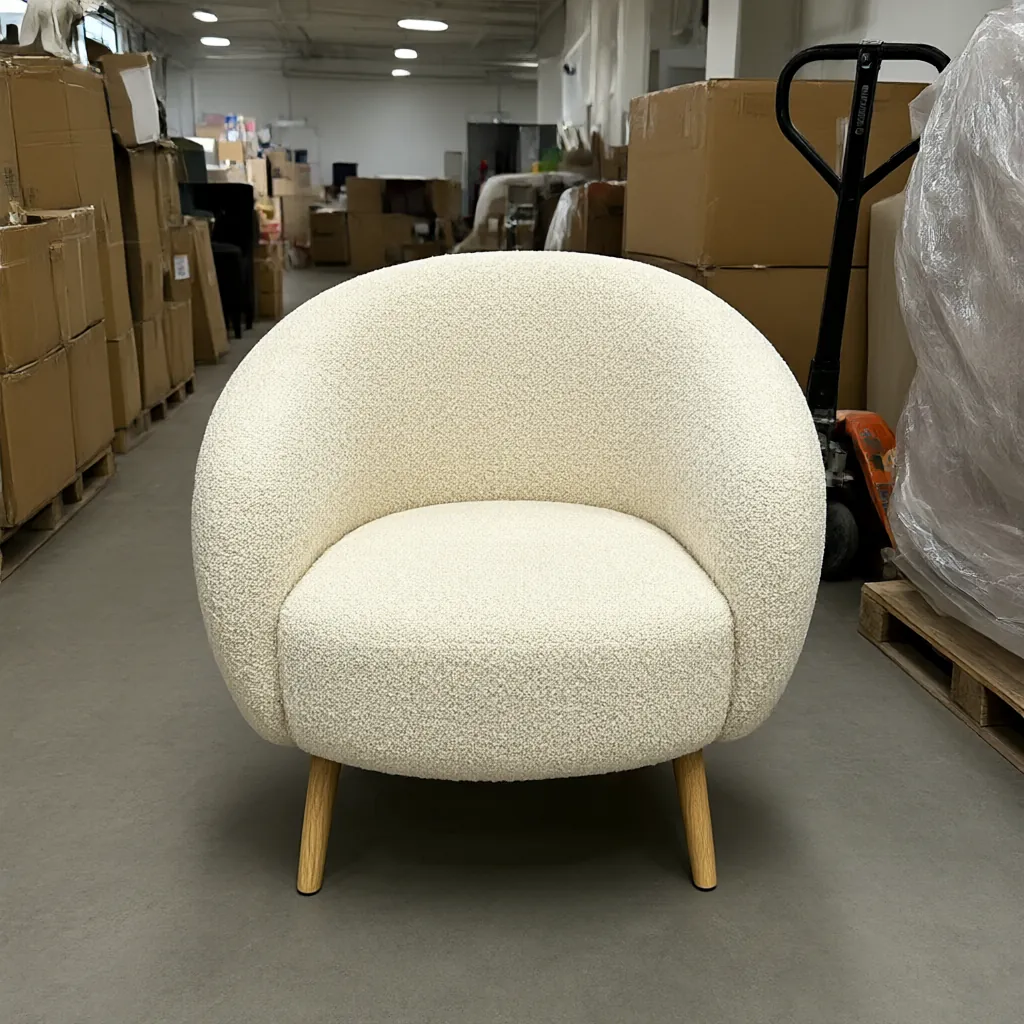 Snapshot
Silo
What you get
How the Silo Shot Generator works
Files you get
A JPG, a pure white (#FFFFFF) PNG with a soft shadow, plus transparent PNGs with and without the shadow.
Backdrop
Pure white by default, or type any hex color to match your brand or a marketplace.
Shadow
A soft contact shadow that falls under the product in real perspective. Switch it off for a clean, shadow-free cut-out.
Sizes
Square 1:1, portrait 4:5 or landscape 16:9.
Credits
1 credit per silo shot.
Speed
About ten seconds once your job starts.
Marketplace ready
Built for white-background listings
Many marketplaces want the main product image on a pure white background. Amazon, for example, asks for pure white (RGB 255, 255, 255) on main images. Our backdrop is exactly #FFFFFF, and only the shadow under the product is darker.
Rules differ between marketplaces and change over time, so check each one's current image requirements. If a listing needs nothing but white, switch the shadow off or use the transparent PNG.
Examples
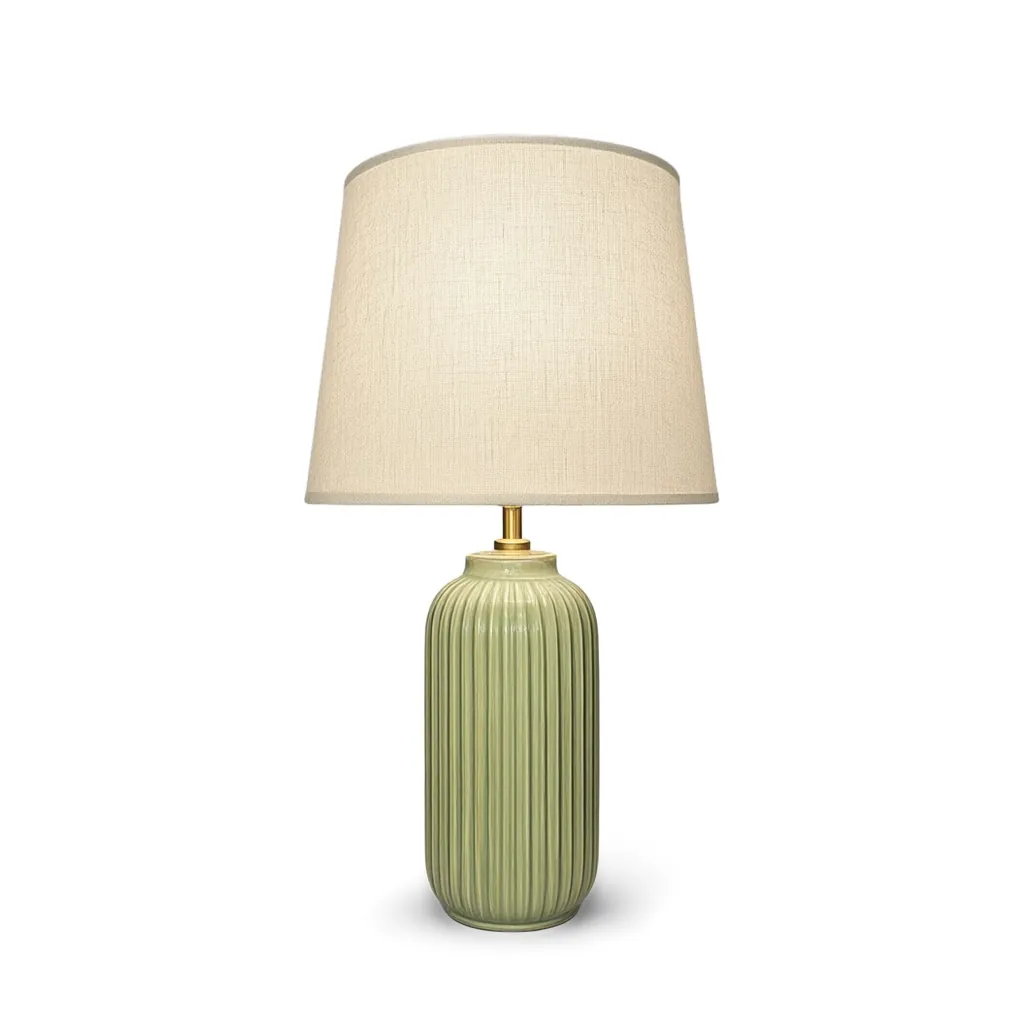
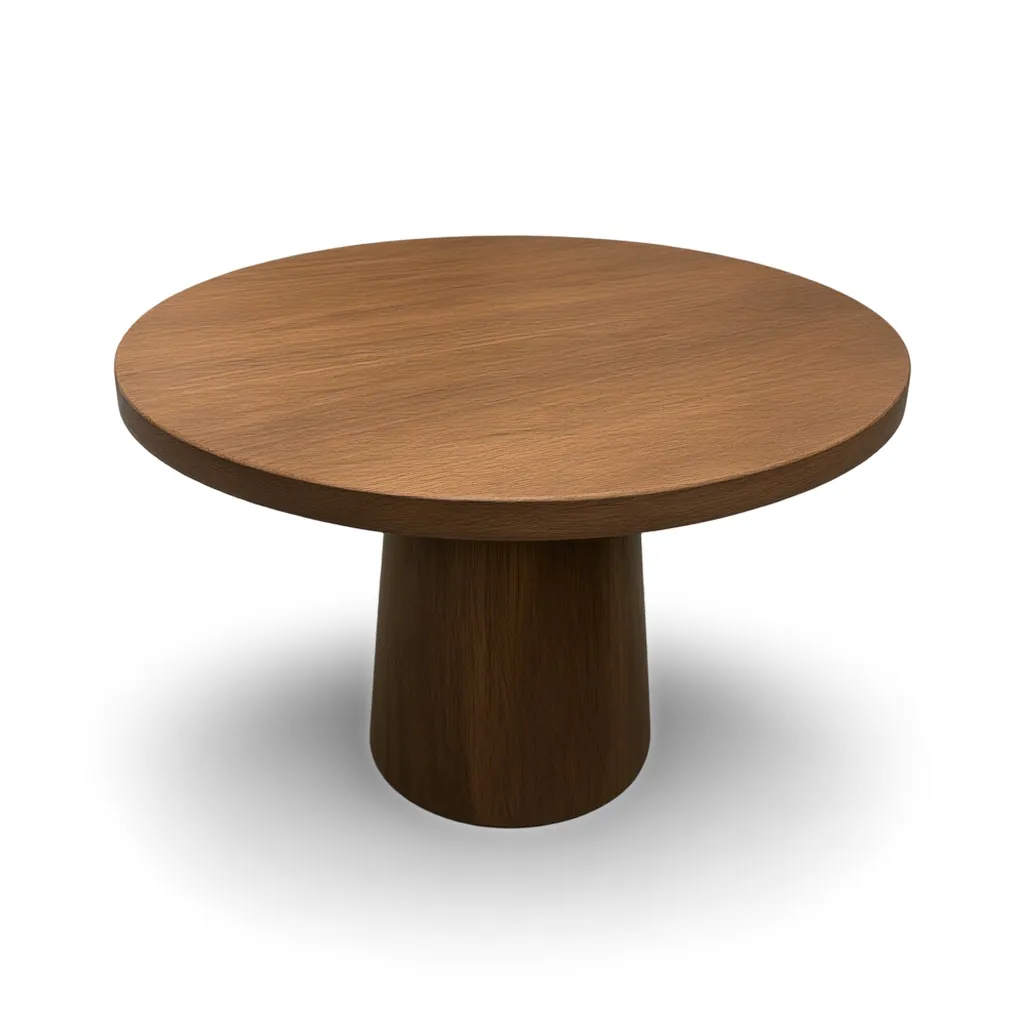
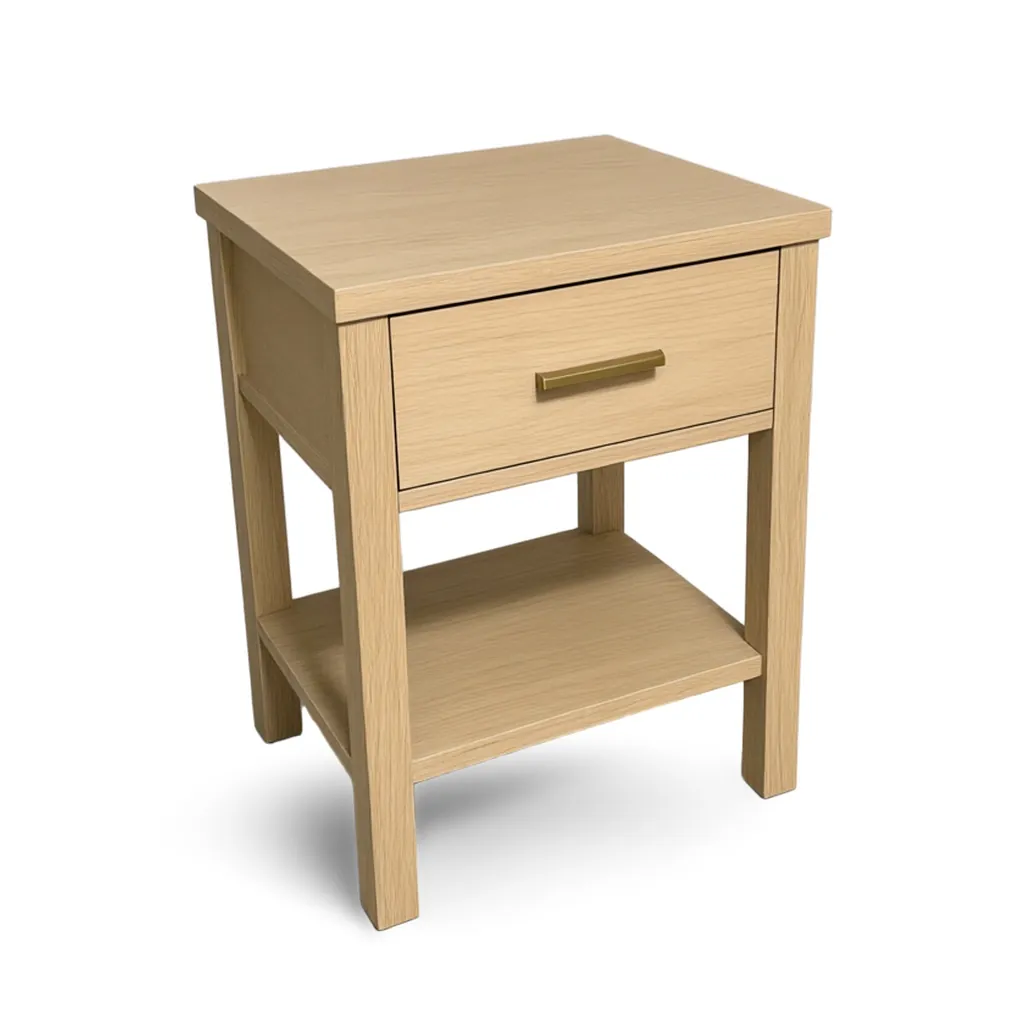
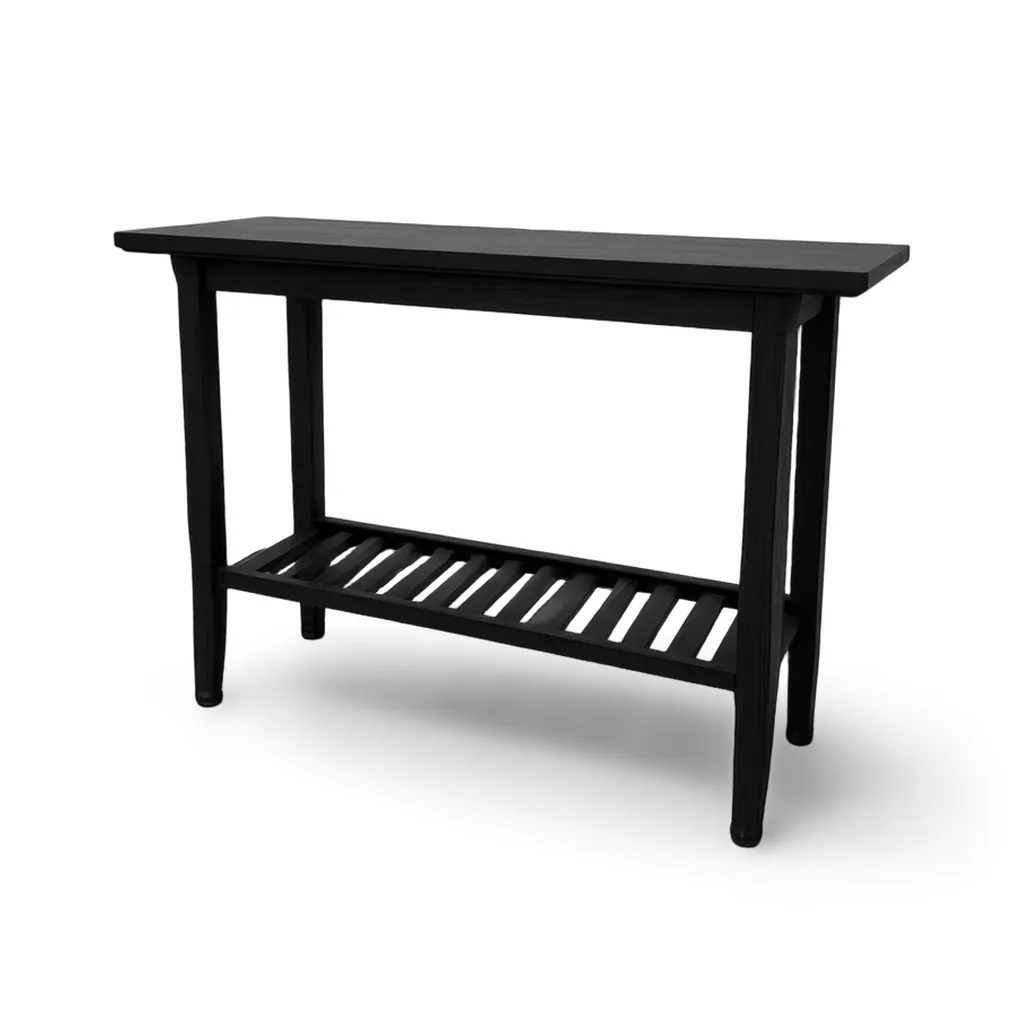
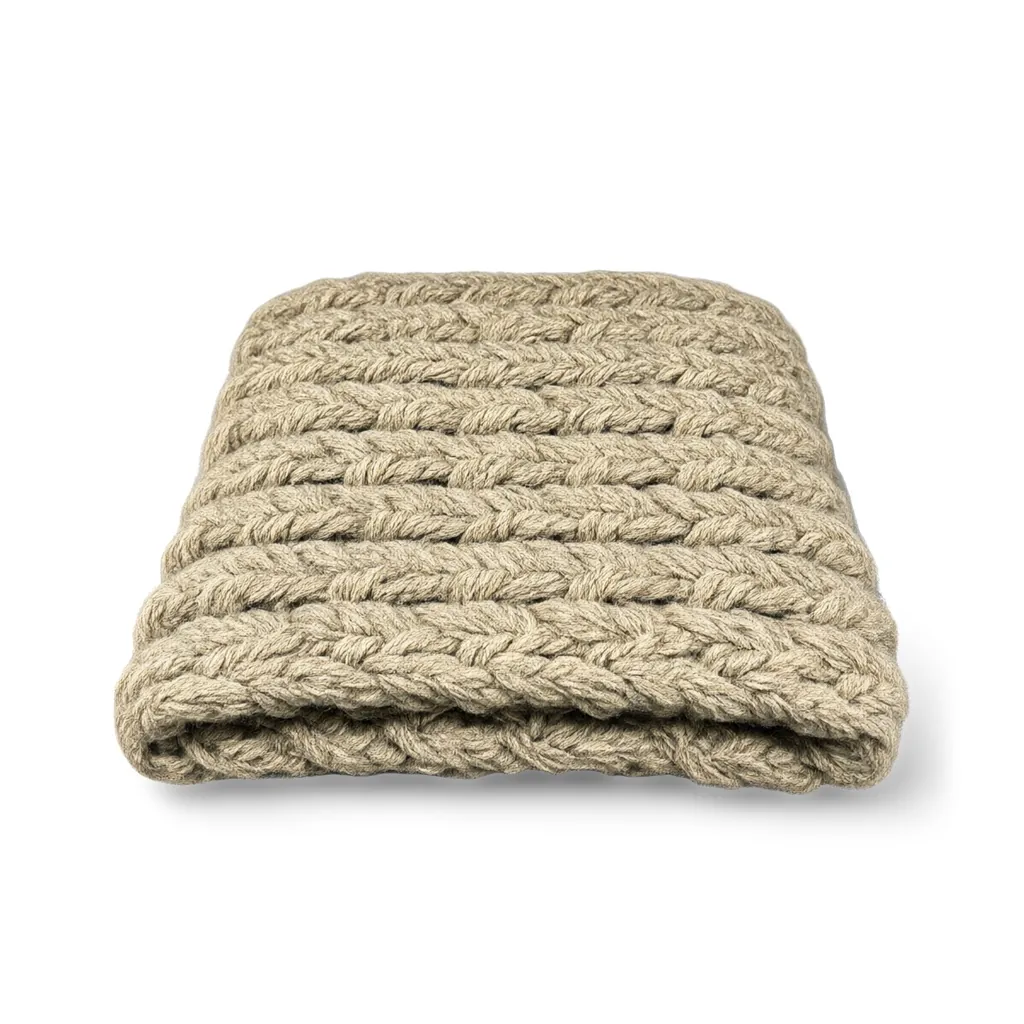
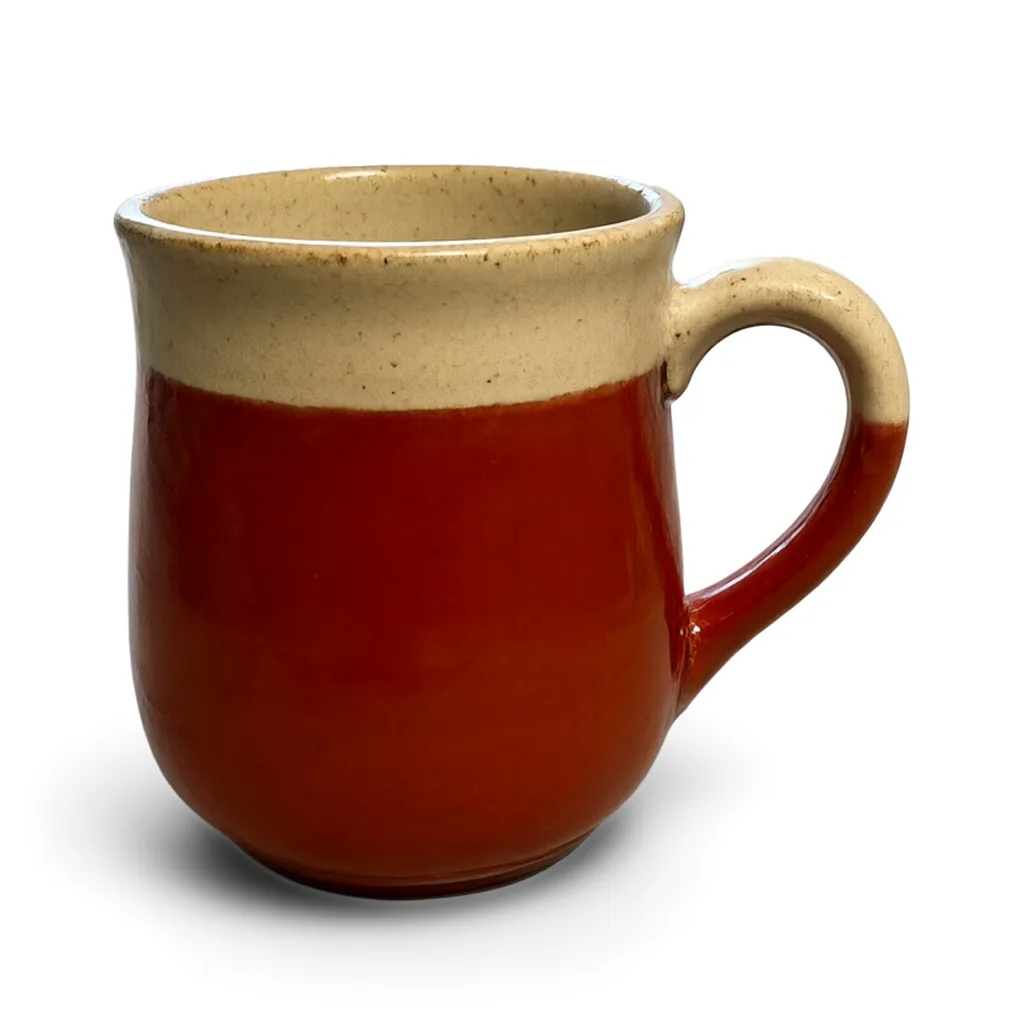
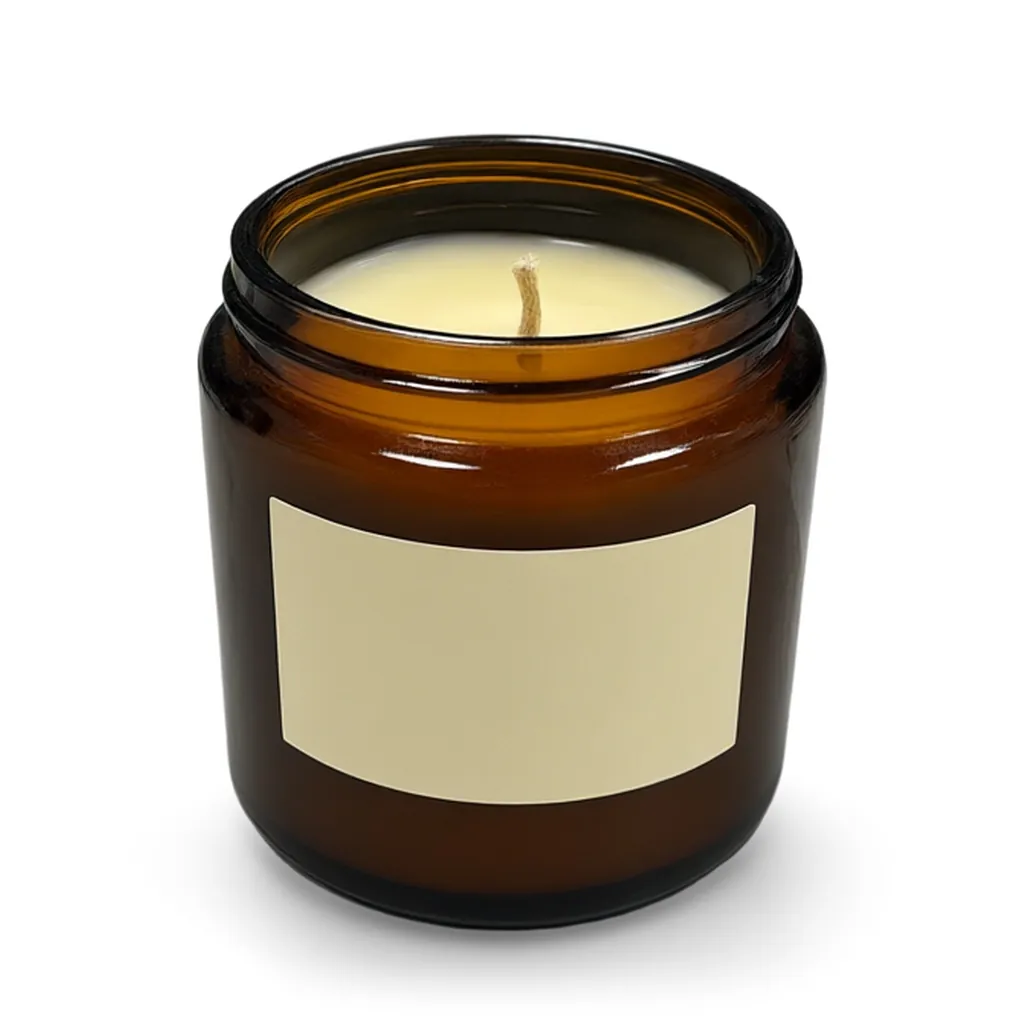
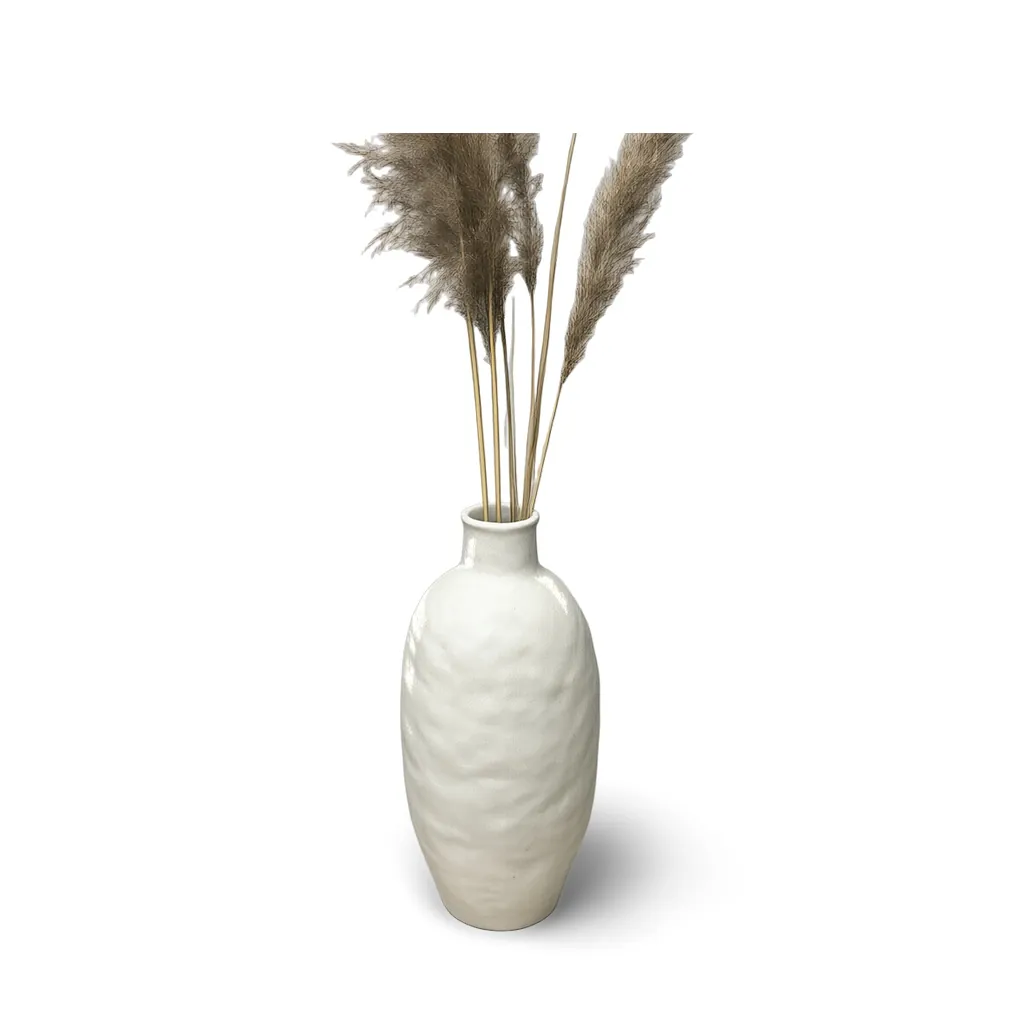
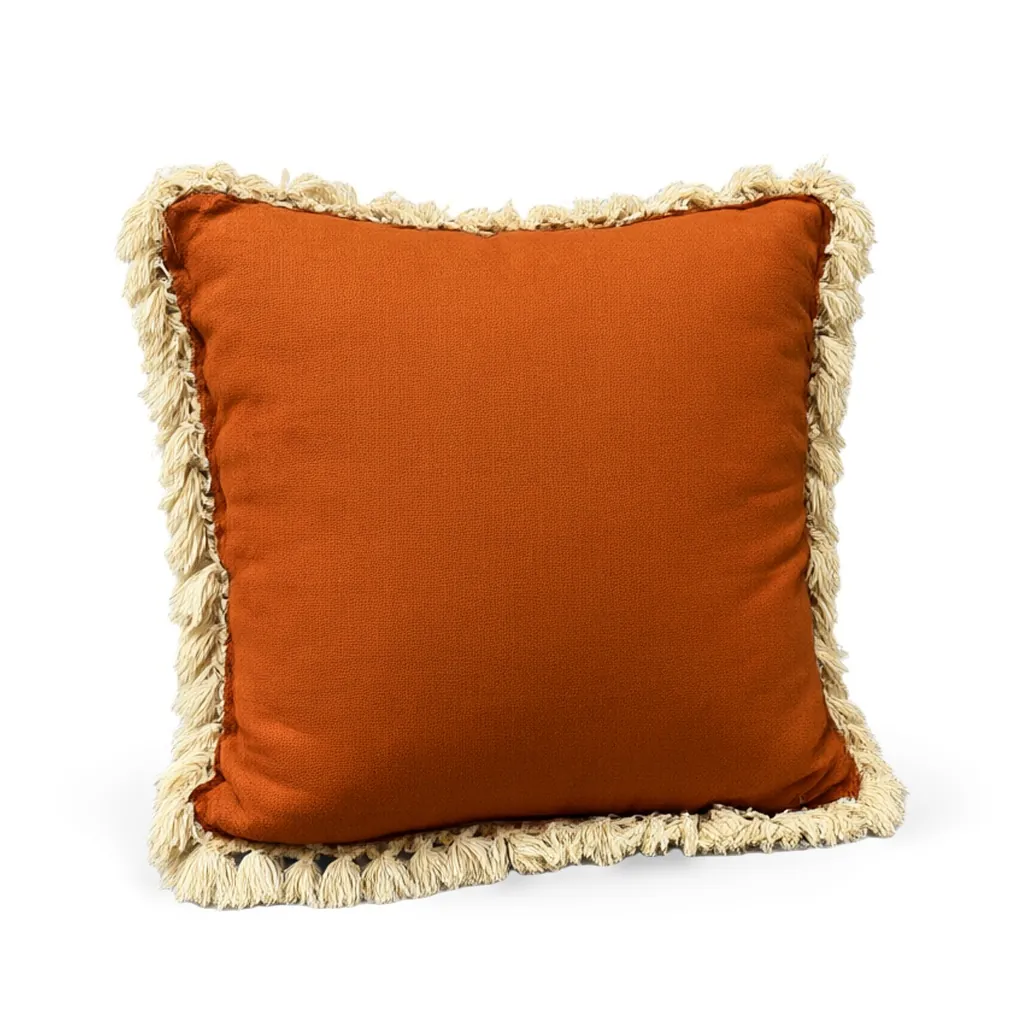
Made with the Silo Shot Generator
Studio samples, each made from a plain snapshot with our own tools.
How it works
Four steps, no photoshoot
Upload a snapshot
A phone photo is fine, even on a busy warehouse floor. Keep the whole product in frame.
Pick a backdrop
Pure white, or any hex color. Choose square, portrait or landscape.
Keep or drop the shadow
The soft contact shadow is on by default.
Download every format
JPG, white PNG with shadow, and transparent PNGs with and without the shadow.
Questions
Is the background really pure white?
Yes. The backdrop is exactly #FFFFFF (RGB 255, 255, 255). Only the soft shadow under the product is darker, and you can switch the shadow off.
Do I get a transparent PNG?
Yes. Every silo shot comes with transparent PNG cut-outs, one with the shadow and one without, alongside the JPG and the white PNG.
Can I use a colored backdrop?
Yes. Type any hex color, such as a brand color, and the product is placed on that instead of white.
Will the product itself be changed?
Every tool is built to keep your product's shape, colors, materials, pattern and printed text the same and change only what's around it.
How many credits does a silo shot use?
One credit per silo shot. New accounts get 200 free credits, no card needed.
More answers on the pricing page. Related guides: Product photo requirements by marketplace and Silo shots vs. lifestyle photos: when to use each.
More tools
Every plan includes all six tools.
Get started
Try every tool with 200 free credits.
No card needed. Want us to do a whole catalog for you? Email hello@ketchupnomayo.com.
Already have an account? Log in